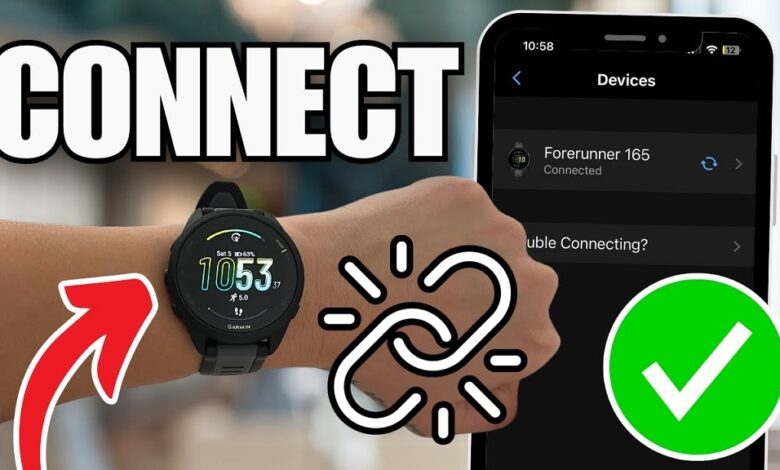
Garmin watches are excellent tools for tracking fitness, monitoring health, and staying connected. However, when your Garmin watch stops syncing with your phone or laptop, it can be frustrating. This issue, often described as a Garmin watch not syncing with laptop or phone, can stem from various causes like connectivity problems, outdated software, or incorrect settings. Fortunately, most syncing issues can be resolved with simple troubleshooting steps. For reliable tech solutions, visit Hosting Culture, a trusted resource for device-related guides and tips.
Understanding Why Your Garmin Watch Won’t Sync
Syncing problems can disrupt your ability to track workouts or update data. Common reasons include Bluetooth connectivity issues, outdated firmware, or software glitches on your phone or laptop. Additionally, incorrect account settings or a weak internet connection may prevent syncing. To dive deeper into this issue, check out this detailed guide on how to fix Garmin watch sync failure for expert insights. Identifying the root cause is the first step to restoring seamless functionality.
Step-by-Step Troubleshooting Guide
Follow these practical steps to resolve syncing issues with your Garmin watch. Each step is designed to address common problems and restore connectivity.
Check Bluetooth and Internet Connections
Ensure your Garmin watch’s Bluetooth is enabled and paired with your phone or laptop. On your phone, go to Bluetooth settings and confirm the watch is listed as a connected device. For laptops, check the Bluetooth settings in the system tray (Windows) or menu bar (Mac). A stable internet connection is also crucial, as Garmin Connect relies on Wi-Fi or mobile data to sync. Restart Bluetooth on both devices and ensure you’re within a 30-foot range.
Update Garmin Connect App and Watch Firmware
Outdated software often causes syncing failures. Open the Garmin Connect app on your phone or the Garmin Express software on your laptop. Check for app updates in the App Store (iOS) or Google Play Store (Android). For the watch, connect it to Garmin Express via USB or check for firmware updates in the app under “Settings” > “Device Updates.” Install any available updates, as they often fix bugs affecting sync performance.
Restart Devices
A simple restart can resolve temporary glitches. Turn off your Garmin watch by holding the power button until it powers down, then turn it back on. Similarly, restart your phone or laptop. This refreshes the connection and clears minor software hiccups. After restarting, attempt to sync again through the Garmin Connect app or Garmin Express.
Verify Garmin Connect Account Settings
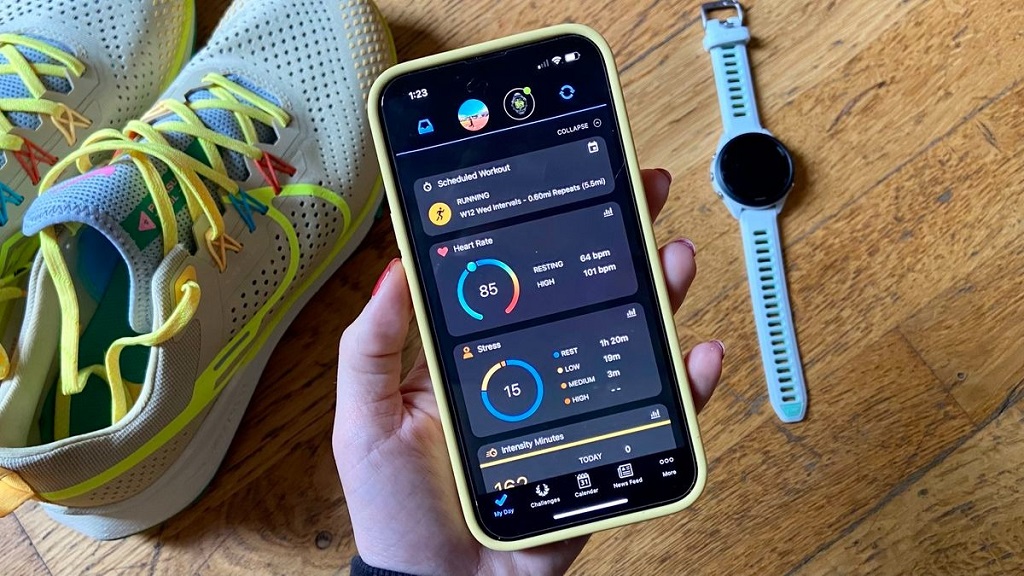
Incorrect account settings can block syncing. Open the Garmin Connect app or website and ensure you’re logged into the correct account. Verify that your watch is linked to your profile under “Devices.” If you recently changed your email or password, update these details in the app. Additionally, check that the app has necessary permissions, such as access to Bluetooth and location services.
Re-Pair Your Garmin Watch
If the connection remains unstable, unpair and re-pair your watch. In the Garmin Connect app, go to “Devices,” select your watch, and choose “Remove Device.” On your phone or laptop, forget the watch in Bluetooth settings. Then, follow the app’s prompts to pair the watch again. This process resets the connection and often resolves persistent syncing issues.
Check for Compatibility Issues
Ensure your phone or laptop meets Garmin’s system requirements. Older devices or operating systems may not support the latest Garmin Connect app. Visit Garmin’s website for a list of compatible devices. If your device is outdated, consider syncing with a different phone or laptop temporarily to isolate the issue.
Reset Your Garmin Watch
As a last resort, reset your Garmin watch to factory settings. Be aware that this erases all data, so sync any important data beforehand if possible. To reset, go to “Settings” > “System” > “Reset” on your watch. After resetting, re-pair the watch with your phone or laptop and set it up through Garmin Connect. This often resolves deep software issues.
Advanced Troubleshooting Tips
If the above steps don’t work, try these advanced solutions. First, ensure your laptop or phone has the latest operating system updates, as outdated systems can cause compatibility issues. Next, check for conflicting apps that may interfere with Bluetooth, such as other fitness trackers or VPN software. Disable or uninstall these temporarily. Finally, clear the Garmin Connect app cache on your phone by going to “Settings” > “Apps” > “Garmin Connect” > “Clear Cache.”
Preventing Future Syncing Issues
To avoid recurring problems, keep your watch, app, and devices updated. Regularly check for firmware and app updates to ensure compatibility. Additionally, maintain a strong Bluetooth and internet connection during syncing. Avoid pairing your watch with multiple devices simultaneously, as this can cause conflicts. Lastly, periodically restart your watch and app to refresh connections.
When to Contact Garmin Support
If none of the steps resolve the issue, contact Garmin Support. Visit their website and provide details about your watch model, software versions, and troubleshooting steps tried. Garmin’s team can offer personalized solutions or recommend repairs if hardware issues are suspected. Keep your watch’s serial number handy for faster assistance.
Conclusion
A Garmin watch not syncing with your laptop or phone can disrupt your fitness tracking, but most issues are fixable with straightforward steps. Start by checking Bluetooth and internet connections, updating software, and restarting devices. If needed, re-pair the watch or reset it to factory settings. By following these steps and maintaining your devices, you can ensure seamless syncing. For ongoing tech tips, resources like Hosting Culture provide valuable guidance to keep your devices running smoothly.
Read More Also: How to Use Technical Analysis Platforms Like a Pro in Stock Market
Frequently Asked Questions
Why does my Garmin watch fail to sync with my phone?
Syncing failures often result from Bluetooth issues, outdated apps, or incorrect account settings. Ensure Bluetooth is enabled, update the Garmin Connect app, and verify your account details.
How do I update my Garmin watch firmware?
Connect your watch to the Garmin Connect app or Garmin Express on your laptop. Check for updates under “Settings” > “Device Updates” and follow the prompts to install.
Can a factory reset fix syncing problems?
Yes, a factory reset can resolve persistent software issues, but it erases all data. Back up important data if possible before resetting via “Settings” > “System” > “Reset.”
Why does my Garmin watch sync with my phone but not my laptop?
This could be due to outdated Garmin Express software or laptop compatibility issues. Update Garmin Express and ensure your laptop meets Garmin’s system requirements.
How do I contact Garmin Support for syncing issues?
Visit Garmin’s website, navigate to the support section, and submit a ticket with your watch model, software details, and troubleshooting steps attempted.