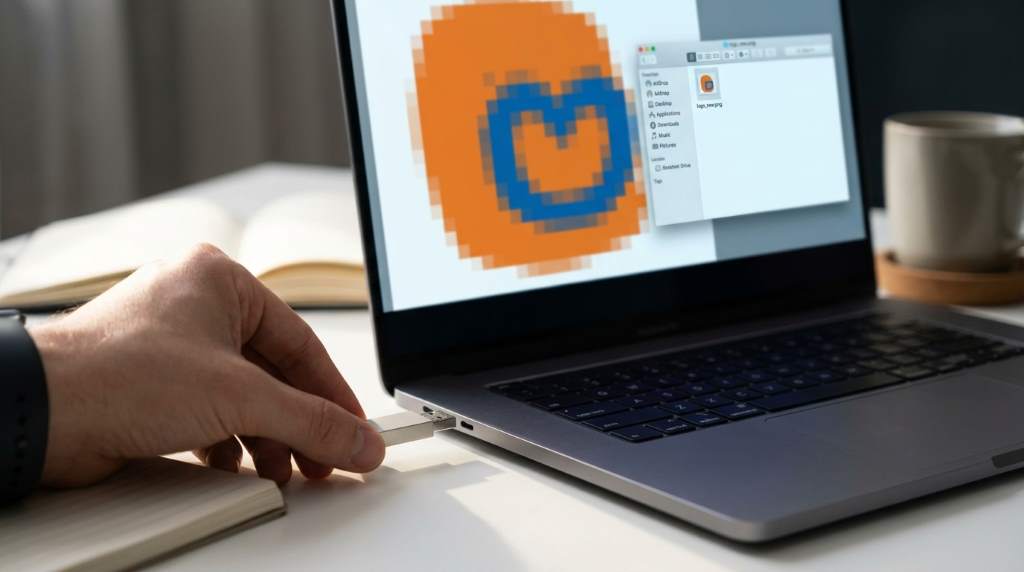
Every designer wants sharp branding because crisp logos build trust and strengthen visual identity across every platform. Research shows that people form first impressions within seconds, while consistent branding can improve recognition by over 80%. If you struggle with blurry Illustrator vectors, several practical solutions can restore professional quality quickly. This guide explains proven methods that help Los Angeles, CA designers create clean, scalable logo graphics without unnecessary frustration.
Understand Why Logo Graphics Become Pixelated
Pixelation usually appears after resizing low-resolution files beyond their original dimensions. Designers should always inspect the original artwork before making significant adjustments.
Many beginners accidentally stretch raster images instead of scalable vectors during editing projects. Likewise, studying good school design principles reminds creative professionals that careful planning consistently improves final visual quality.
Common causes include:
- Using screenshots instead of source files
- Exporting artwork with low resolution settings
- Saving logos repeatedly in compressed formats
- Scaling bitmap graphics excessively
- Ignoring document color and resolution settings
Start With the Highest Quality Source File
The original artwork determines the maximum quality you can achieve during every editing project. Therefore, request vector files whenever clients provide outdated logo assets.
Professional designers typically prefer AI, EPS, PDF, or SVG formats because they remain scalable. Similarly, thoughtful planning resembles planning and designing projects where preparation reduces expensive corrections later.
Best File Types for Logo Design
- AI for Illustrator editing
- SVG for websites and responsive graphics
- EPS for print production
- PDF for universal sharing
Convert Raster Logos Into Clean Vector Artwork
Automatic tracing works for simple graphics, although manual refinement usually delivers superior visual accuracy. Consequently, experienced designers inspect every curve after converting artwork.
Zoom closely while adjusting anchor points because tiny imperfections become noticeable during large format printing. Color consistency also matters, and reviewing color hex codes can reinforce accurate palette management across branding projects.
Helpful Vector Cleanup Tips
- Reduce unnecessary anchor points
- Smooth uneven curves carefully
- Correct overlapping paths
- Align shapes precisely
- Match brand colors accurately
Use Proper Export Settings Every Time
Excellent artwork still appears blurry after incorrect exporting because output settings directly affect final image quality. Always select settings based on the intended destination before saving.
Print materials require different specifications than websites because each medium displays graphics differently. Consequently, exporting thoughtfully prevents unnecessary revisions and client complaints.
Recommended Export Practices
- Use PNG for transparent web graphics
- Choose SVG for scalable digital logos
- Export PDF for professional printing
- Select high resolution raster outputs when necessary
Improve Logo Sharpness Inside Design Software
Modern software includes helpful features that improve appearance without damaging important artwork details. However, avoid excessive sharpening because artificial effects often reduce professional quality.
Preview graphics at actual display sizes before exporting final deliverables for websites or print campaigns. Testing different viewing conditions also reveals hidden issues before clients notice them.
Avoid Common Mistakes During Logo Editing
Small editing mistakes often create noticeable quality problems throughout branding materials and marketing campaigns. Fortunately, consistent quality checks eliminate many preventable errors before publication.
Never copy logos from social media because those versions usually contain heavy compression artifacts. Instead, organize original design assets carefully for future revisions and brand updates.
- Avoid stretching logos unevenly
- Never upscale tiny images dramatically
- Keep master vector files safely archived
- Review exports before client delivery
- Maintain consistent brand colors
Optimize Logos for Different Platforms
Every platform displays graphics differently because screen sizes and resolutions continue evolving rapidly. Therefore, prepare multiple optimized versions instead of relying on one universal file.
Create separate exports for websites, presentations, business cards, signage, and social media graphics. Organized asset libraries also improve productivity during future branding projects.
Build a Reliable Logo Quality Workflow
Successful designers follow repeatable workflows because consistency saves valuable production time across multiple client projects. Furthermore, documented processes reduce overlooked mistakes significantly.
Create quality checklists before every export to verify resolution, alignment, spacing, colors, and typography. This simple habit consistently improves professional results while increasing client confidence.
Conclusion
Sharp logo graphics strengthen brand credibility while creating memorable visual experiences across digital and printed materials. Applying these practical techniques helps designers produce cleaner results with greater confidence every day.
Review your current workflow today, improve weak design habits, and preserve high quality assets for every future project. Consistent attention to detail will help every logo remain sharp, professional, and visually impressive.
Frequently Asked Questions
Why does my logo become pixelated after resizing?
Raster images lose quality when enlarged beyond their original resolution.
Which file format works best for logo editing?
AI and SVG files provide the greatest flexibility because they scale without losing quality.
Can I fix a low quality logo completely?
You can improve many logos, although recreating them as vectors often delivers the best results.
Should I use PNG or SVG for websites?
SVG works better for scalable logos, while PNG suits transparent raster graphics.
How often should I check exported logo files?
Always review every exported file before delivering artwork to clients.